Posts

Showing posts from 2009

Excel Cell Formating

Image
Today I would like to present you some tips on excel formatting; 1. Formatting an excel cell to Text, Number, Date , Time, Currency, Accounting, special or custom.         Select any excel cell and then on the menu click on Format then click on cell you can also use shortcut to open the cell formatting box directly by holding Ctrl+1 key, as shown in the following figure.    As in the above figure you can see Category box from where you can change the cell format to your desired format. You can do lot more than format in an excel cell. Make your excel cell a digital clock or digital image viewer, whatever you want just imagine and do it by using all the advanced features of cell formatting  to know more about how to do it just give a comment to this post.        

Powerpoint Slide Designs

Powerpoint Slide Designs! Hey find stunning exciting powerpoint slide designs and template simply download and enjoy from the creator and the king softwares Microsoft. I have visited many sites in search of power point slide shows back grounds and etc etc. I found it as the best please check visit this site of microsoft. http://office.microsoft.com/en-us/templates/CT101427471033.aspx?av=ZPP000 . hope you will find it usefull too!!. look the below slide.

Microsoft Word shortcut keys

Below is a listing of all the major shortcut keys in Microsoft Word. Shortcut Keys Description Ctrl + A Select all contents of the page. Ctrl + B Bold highlighted selection. Ctrl + C Copy selected text. Ctrl + E Aligns the line or selected text to the center of the screen. Ctrl + F Open find box. Ctrl + I Italic highlighted selection. Ctrl + J Aligns the selected text or line to justify the screen. Ctrl + K Insert link. Ctrl + L Aligns the line or selected text to the left of the screen. Ctrl + M Indent the paragraph. Ctrl + P Open the print window. Ctrl + R Aligns the line or selected text to the right of the screen. Ctrl + T Create a hanging indent. Ctrl + U Underline highlighted selection. Ctrl + V Paste . Ctrl + X Cut selected text. Ctrl + Y Redo the last action performed. Ctrl + Z Undo last action. Ctrl + Shift + F Change the font. Ctrl + Shift + > Increase selected font +1pts up to 12pt and then increases font...

Relative and Absolute Cell References

Image
Relative and Absolute Cell References Excel uses two types of cell references to create formulas.  Each has its own purpose.  Read on to determine which type of cell reference to use for your formula.  Relative Cell References This is the most widely used type of cell reference in formulas.  Relative cell references are basic cell references that adjust and change when copied or when using AutoFill. Example: =SUM(B5:B8), as shown below, changes to =SUM(C5:C8) when copied across to the next cell. Absolute Cell References Situations arise in which the cell reference must remain the same when copied or when using AutoFill.  Dollar signs are used to hold a column and/or row reference constant. Example: In the example below, when calculating commissions for sales staff, you would not want cell B10 to change when copying the formula down.  You want both the column and the row to remain the same to refer to that exact cell.  By using $B$10 in the formul...

Converting PDF file to Ms Word

Some times you may come across a situation where you would be looking for a software which can convert your PDF file to Word. So dont worry it is simple and easy!!. Here i am providing your some of the sites which will let you convert your PDF document to Ms Word for free of cost. Please follow these links 1. http://www.pdfonline.com/pdf2word/index.asp 2. http://convertpdftoword.net/ Some sites provide you PDF to word converting software for a nominal charge. You may also check from the google search engine by typing " convert PDF to Word" that's it. Enjoy! :) Happy Converting!!

Cell Locking in Microsoft Excel

Image
There's pretty much just two reasons for locking cells: To restrict entry (locked cells may not be changed) To allow tabbing to different cells for entry (unlocked cells can be tabbed through) The points you should know are these: All cells are locked by default Cell locking doesn't take effect until you protect your worksheet (Tools à Protection à Protect Sheet to "lock" or Tools à Protection à Unprotect Sheet to "unlock") If you want most cells locked, then only unlock those you want users to be able to change If you want most cells unlocked, then unlock them all first, and then lock only those you want prohibit users from changing Select All Cells Just click the button above Row 1 and to the left of Column A. This selects all the cells on your worksheet. Lock/Unlock Cells Go to Format à Cells. Choose the Protection tab. Lock or unlock the cells as desired. You can quickly lock/unlock cells by locking or unlocking one or more cells, the...

Excel Games

Image
Excel Games: Besides you work with excel for your office you can also have fun playing exciting games in excel look at this and try it click here to download this is a sample game from excelgames.org

Microsoft Office 2007

Image
Microsoft Office 2007 (officially called 2007 Microsoft Office System) is the most recent Windows version of the Microsoft Office System, Microsoft's productivity suite. Formerly known as Office 12 in the initial stages of its beta cycle, it was released to volume license customers on November 30, 2006[1] and made available to retail customers on January 30, 2007. These are, respectively, the same dates Windows Vista was released to volume licensing and retail customers. Office 2007 contains a number of new features, the most notable of which is the entirely new graphical user interface called the Fluent User Interface[2] (initially referred to as the Ribbon User Interface), replacing the menus and toolbars – which have been the cornerstone of Office since its inception – with a tabbed toolbar, known as the Ribbon. Office 2007 requires Windows XP with Service Pack 2 or higher, Windows Server 2003 with Service Pack 1 or higher, or Windows Vista.[3] The 'Ribbon User Interface...

Excel Drop Down List

Image
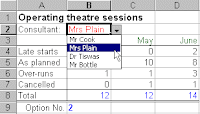
Excel is excellent and lets see how it helps you using this drop down list features ! If you don't want to risk an item being miss-typed in a cell, drop down lists are an ideal solution. So These lists display all of the available choices to the user so that they can click on their preference. Excel allows you to place two different types of drop down list on your worksheet - either a validation list or a form object. A validation drop down list These lists are contained within a cell on your worksheet and the drop down arrow (to the right of the cell) does not appear unless the cell is selected. To add a list to a worksheet place the cursor in the required cell and then selectData Validation Settings. In the dialog box select 'Allow: List' and ensure the 'In-cell dropdown' box is ticked. The source data refers to a range of cells containing the selection of options. If you use the mouse to point to a range of cells (e.g. H12:H15), they must normally be contained o...

Get Up To Speed With Microsoft Word 2007

Released in January 2007, Microsoft Word 2007 has undergone some drastic changes, most noticeable of which is the replacement of the old menu and toolbar system with the new ribbon. The ribbon is the focal point of a new user interface designed to make it even quicker and easier to perform professional document authoring tasks. Once you are familiar with using the ribbon in Word 2007, you will find the transition to all the other products in Office 2007 a doddle - the ribbon is common to them all. And so are new concepts like themes and content controls. Whether you create newsletters, articles, annual reports or update a blog, Microsoft Word 2007 enables you to create, edit and share content in a variety of formats. Themes allow you to change the entire look of a document with just a few mouse clicks. Building blocks give you the opportunity to create reusable content, helping you to cut down time spent on the creation and cross referencing of key information like document title, subt...

Microsoft InfoPath

Image
Microsoft InfoPath (full name Microsoft Office InfoPath) is an application used to develop XML-based data entry forms, first released as part of the Microsoft Office 2003 suite of programs in late 2003 and later released as part of Microsoft Office 2007. Initially given the codename XDocs, the main feature of InfoPath is its ability to author and view XML documents with support for custom-defined XML schemata. It can connect to external systems using XML Web services through MSXML and the SOAP Toolkit, and back-end and middle-tier systems can be configured to communicate by using Web services standards such as SOAP, UDDI, and WSDL. Additionally, because InfoPath documents are raw XML, it is possible to directly repurpose the data in other XML processors. In InfoPath, the user can complete a form while off-line. InfoPath may check some fields on the form for validity, and the user can attach a digital signature. The user later connects to the server and submits the form (in XML form), w...

Market Share Ms Office Publisher

Publisher has a relatively small share of the desktop publishing market, which is dominated by Adobe InDesign and QuarkXPress.[2] Publisher has historically been less well-liked among high-end commercial print shops, compared with other desktop publishing applications.[3] Publisher's position as an entry-level application aggravates many issues (particularly in older versions) such as fonts unavailable and embedded objects not available on service providers' machines (however, Publisher does come with tools to pack related files into a self-expanding application). Many higher end features like transparency, object shadowing, slugs, text on paths, built-in PDF output, etc. are either not fully-functional or simply unavailable (especially in previous versions). However, recent versions have greater capabilities concerning color separations and proper process coloring output. Publisher 2007 also includes the capability to output commercial press quality PDF with embedded fonts as ...

Ms office Publisher 2003

Microsoft Publisher, officially Microsoft Office Publisher, is a desktop publishing application from Microsoft. It is an entry-level application, differing from Microsoft Word in that the emphasis is placed on page layout and design rather than text composition and proofing.Ms Office Publisher 2003 is blended with many features that can help you in works related to publications including web publishing. Read more.... by David Bartosik, MVP As a Microsoft Publisher MVP and Office 11 beta tester, I've had ample time to get to know all the changes that have been made to the products web design functionality in this latest release. In this article I'll share some of these with you along with some input on my experience. Personally my favorite thing about this version is that the products Personal Info Dialog Box finally has an option to turn it off. Through each version I have never used the Personal Info feature and that pop up dialog on each new publication has always annoyed me....

What makes your office work fast!!

If you really want to work faster in ms offfice applications. At the time of installation you should keep in mind that, install minimal application then as and when needed get it upgraded that really works faster. Check by reinstalling ms office application on your machine.

Ms Office Tools MS Access Snapshot viewer

Image
Discover the new things in ms office tools if you are new ... Today I am going to put forth the information about snapshot viewer. You may have come across this before or may have never. So lets check what's ultimate microsoft people has done for the ms office users around the world. First lets learn about snapshot viewer Snapshot Viewer is a program that you can use to view, print, and mail a snapshot, such as a report snapshot. Snapshot Viewer version 9.0 consists of a stand-alone executable program, a Snapshot Viewer control (Snapview.ocx), a help file, and other related files. By default, Snapshot Viewer is automatically installed by Microsoft Access 2000 the first time you create a report snapshot. You can also install Snapshot Viewer from the Setup program, or from a World Wide Web software download page located at the Microsoft Access Developer's Web site. You can use the Snapshot Viewer control to view a snapshot from Microsoft Internet Explorer version 3.0 or later or...

Getting words from figures is excellent in excel

Image
Amazing attribute of ms excel you can get your figures converted to words is as easy as 123. Only simple thing you got to know is this..... ------------------------------------------------------------------------------------ here is the formula!! you can copy this formula directly from here !! --------------------------------------------------------------------------------------- Function ConvertCurrencyToEnglish(ByVal MyNumber) Dim Temp Dim Rupees, Paise Dim DecimalPlace, Count ReDim Place(9) As String Place(2) = " Thousand " Place(3) = " Million " Place(4) = " Billion " Place(5) = " Trillion " ' Convert MyNumber to a string, trimming extra spaces. MyNumber = Trim(Str(MyNumber)) ' Find decimal place. DecimalPlace = InStr(MyNumber, ".") ' If we find decimal place... If DecimalPlace > 0 Then ' Convert Paise Temp = Left(Mid(MyNumber, DecimalPlace + 1) & "00", 2) Paise = ConvertTens(Temp) ' Strip off Pa...

Brief Case Helps you just update files on a single Click

Image
How To Use the Briefcase Feature in Windows XP __________________________________________ Using Briefcase The Briefcase feature in Windows XP helps you keep your files updated by automatically synchronizing multiple copies of individual files. In other words, Briefcase keeps track of the relationship between files on two or more computers. For example, if you use a desktop computer at the office, and you use a portable computer when you are on the road, Briefcase synchronizes and updates the files on your desktop computer to the modified versions when you reconnect your portable computer to the desktop computer. Briefcase stores and displays the update status of files. It keeps track of whether a file is linked to the original file on your main computer, or whether it is an orphan file (a file stored in Briefcase that is not linked to another file). You can use this information to keep your files organized and to keep track of the most recent versions of your files. Use Briefcase when ...

Do You Out For Frequents with piece of Data

Hey no worries !!! find out what the briefcase can do for you. Synchronise data hassel free keep pinging more to come about briefcase office solutions

Packaging a Presentation for CD

Image
The Package for CD feature of PowerPoint 2003, called Pack 'n Go in previous versions, allows you to store one or more of your presentations on a CD or other disk drive. In addition to your presentation, PowerPoint also includes the PowerPoint Viewer by default so that you can run the packaged presentation on another computer even if PowerPoint is not installed on it. This is really helpful if you give a presentation at work or another event and are unsure if the computer you will use has PowerPoint installed. To Package a Presentation for CD: Select File Package for CD from the main menu. Enter a name for your CD. Click Add Files and follow the instructions to add any extra files to the CD that you may need. If you link to files outside of your presentation, PowerPoint will automatically add those files. Click Options. Deselect the PowerPoint Viewer box if you are sure the computer you will use has PowerPoint 2003. By default, PowerPoint automatically includes the PowerPoint View...